post

NetApp MetroCluster Overview – Part 1 – What is MetroCluster?

During the past couple of years I’ve been working on Flexpod solutions and even more recently than that I’ve been exposed to NetApp Flexpod MetroCluster. This has led me to doing quite a bit of research and reading about MetroCluster solutions and I thought I’d share some of that knowledge.I wanted to put together a post to help anyone else that needs to get a better understanding of MetroCluster infrastructure. It kind of got out of hand a bit and to make it easier to read I’ve split it out into a number of parts


MetroCluster is a term that is often heard but I believe rarely understood. It adds some extra complexity into every aspect of the infrastructure but from my own technical bias I love that as it gives me something else to learn and play with.

Multiple different vendors now provide a MetroCluster or metro-availability solution but my focus is on NetApp and in particular 7-Mode MetroCluster. Any reference I make to MetroCluster from here on will only be in reference to NetApp MetroClusters. If your clients or company value disaster avoidance, business continuity, fault tolerance and overall infrastructure resilience then you really need to look at a MetroCluster solution. You will also need to have some deep pockets.

As the engineer supporting such solutions and performing disaster recovery tests I can attest to the power of a MetroCluster solution that can attain zero downtime and data resilience. Even in one instance where I almost brought it to its knees it still soldiered on.

What is a MetroCluster? Read More

post

Fix: VMware – Quiesced Snapshots failing – Unexpected error DeviceIoControl

I ran into an interesting problem that took a bit of digging around to both find the root cause and also to find the final fix. When running backups on Vmware 5.5 running on NetApp storage I could see some, but not all VMs, failing and throwing up the below errors in the event logs

Event ID 57 ntfs Warning
The system failed to flush data to the transaction log. Corruption may occur.

Event ID: 137 ntfs Error
The default transaction resource manager on volume \?Volume{806289e8-6088-11e0-a168-005056ae003d} encountered a non-retryable error and could not start. The data contains the error code.

Event ID: 12289 VSS Error
Volume Shadow Copy Service error: Unexpected error DeviceIoControl(\?fdc#generic_floppy_drive#6&2bc13940&0&0#{53f5630d-b6bf-11d0-94f2-00a0c91efb8b} - 00000000000004A0,0x00560000,0000000000000000,0,0000000000353B50,4096,[0]). hr = 0x80070001, Incorrect function.


The key alert here is Event ID 12289. It was also the most off-putting. It initially looked like a floppy drive issue but there was no floppy drive attached to the VM nor were there any floppy drivers installed on the VM. A look around the VMware community forums led me to this posting – https://communities.vmware.com/thread/309844?start=0&tstart=0 It was focused more on vSphere 4.1 however and most of the advice was around installing an older version of VMware Tools. Comment 27 was the jackpot winner. The System Reserved partition was causing the issue.

So what does the System Reserved partition do?

The System Reserved partition contains the Boot Manager and Boot Configuration data that are read on start up of the virtual machine. The VM boots from the boot loader n the System Reserved partition and then boots Windows from the System drive. It is also used as a location for the start up files for BitLocker Drive Encryption. If you need BitLocker then you’ll need to have a System Reserved partition. For Windows client OS’s then that’s a great feature to have but from a server OS perspective where BitLocker just isn’t used then it’s superfluous. The System Reserved partition is created by default on OS installation so there’s two options to remediate.

  1. Remove the partition manually post installation
  2. Remove the partition from your Windows OS templates

I won’t go into the details on how to remove the partition from your templates here but you can find more information over on mydigitallife.info which can be used. I ran through the steps myself to do this for all of our Windows templates following finding the root cause of the initial error.

As per one of the links mentioned in Comment 27 in the VMware communities post it’s possible to change the location of the boot files so that the partition can be removed. This information can be found over on geekshangout.com. However the steps didn’t include how to re-claim that partition so that there isn’t an unallocated disk partition sitting in front of the C drive (disk 0). While I haven’t tested backups in this configuration I wouldn’t be surprised if it cause other issues during backup. So below I’ve listed the steps to follow so you can successfully remove the partition as per the steps on geekshangout and then re-claim the space on gparted.

Delete System Reserved partition and reclaim space

Read More

VMware – Security vulnerability VMSA-2015-0007

VMware announced over the weekend that some major security vulnerabilities have been identified in vCenter and ESXi 5.0, 5.1 and 5.5 as well as version 6.0. 6.0 Update 1 is not affected. Only the JMX RMI Remote code execution is an issue in vSphere 6.0. 3 vulnerabilities have been identified and the affect different versions in total.

ESXi OpenSLP Remote Code Execution

  • Allows unauthenticated users to execute code remotely on ESXi host

vCenter Server JMX RMI Remote Code Execution

  • An unauthenticated remote attacker that is able to connect to the service to execute arbitrary code on the vCenter server

vCenter Server vpxd denial-of-service vulnerability

  • Can allow a remote user to create a denial of service on the vpxd service through unsanitized heartbeat messages

The announcement was broken on both the VMware and TheRegister sites and I’d recommend viewing more information on both of those sites. TheRegister also gives some great background on how the issues were originally identified. The full advisory details including links to the CVE references can be viewed on the VMware Security Advisories site for VMSA-2015-0007.

If you are running vSphere 5.0 the recommendation is to upgrade to v5.0 Update 3e. For vSphere 5.1 upgrade to v5.1 Update 3. For vSphere 6 the recommendation is to patch with Update 1. vSphere 5.5 however has some issues. In order to fix the denial-of-service or the OpenSLP issues it’s advised to upgrade to vSphere 5.5 Update 2. However, to resolve the JMX RMI issue VMware have confirmed that vSphere 5.5 Update 3 which was released in early September as being the fix. But, a new bug has been identified with Update Patch 3 regarding snapshots. If a snapshot is deleted in vCenter it causes the VM to crash. Considering that the majority of snapshot related backup solutions utilise VMware snapshots it means that all VMs would reboot each night. Considering uptime is always a business and IT priority then it’s really not a feasible solution.

My advice would be to at least upgrade to vSphere 5.5 Update 2 if you can. Upgrade to vSphere 6.0 Update 1 if possible but that may require considerable research and interoperability checks and may not be on your roadmap just yet. Do not install ESXi 5.5 Patch 3 if your backup software depends on VMware snapshots.

VMware Validated Designs

What are VMware Validated Designs?

VMware announced at VMworld earlier this year that they have been working on  implementing VMware Validated Designs. This is a fantastic step by VMware and shows a maturity that has come from years of being the number one virtualisation platform. Cisco had had validated designs for years and I refer to them regularly when deploying Cisco related infrastructure. Through the implementation of validated designs VMware is assisting the community to develop and implement consistent designs across infrastructures which will help provide a consistency and familiarity not currently present. When a new platform is being deployed the elements to consider can include compute, storage, network, security, automation and operations. These are not just reference architectures, the validated designs are constantly updated continuously.
This video gives a bit more of an explanation around what VMware Validated Designs are. The designs have been split into pods, Management, Edge and Compute. Management is made up of vCenter Server, vRealize Operations Manager, vRealize Log Insight and VMware Horizon. Network and security are provided by VMware NSX, storage is provided VSAN. The Edge pod provides additional NSX support to allow external access to compute workloads. The compute pod is the heavy lifting pod.


Read More

post

NetApp DFM Snapshot Management – Remove Orphaned snapshots

Orphaned Snapshot Removal – Identify Orphans

I’ve been banging my head against the screen for the past few weeks looking at storage issues and finding orphaned volumes with reams of snapshots using up valuable disk space. In some cases it was due to manual intervention and a snapmirror or snapvault relationship was broken, in others it was caused by DFM creating new instances of the volume but not cleaning up old volumes and associated snapshots and in other cases, well I’ve no idea how they occurred. Hence why I’ve been slapping my brain around the inside of my skull. I’d be interested to know if this is still an issue with OCUM, answers on a postcard.

There’s no pretty way to clean up orphaned snapshots that are essentially owned by DFM. It’s messy, convoluted and requires that you’re very careful and precise about what you’re removing otherwise you’ll make things worse. There are a number of reasons why orphans can occur. One is down to  the way SnapProtect and the DFM work together. If a VM is deleted or moved to another volume and no other VM’s that are a part of that same backup subclient exist on that volume the snapshots will not age and will require a manual clean-up process. This seems to limit the use of automated DRS in VMware, but that’s a separate issue really. Another reason, and what looks to be the cause in my case, is that DFM has intermittent issues communication to the storage controller and thinks the volume doesn’t exist so it DFM may create a FlexClone of the volume and index it to have a new suffix while still being able to access the snapshots that were already captured. This can be caused by network drop outs out by the controllers or the CPUs maxing out and not being able to reply to DFM. I’m still investigating the cause of this. If a new storage policy was created in SnapProtect with these volumes assigned it would clear out the orphans but that would involve re-baselining the backups which is not something you’d want to do, unless of course that data had to value to you.

Read More

post

How-To: NetApp SnapProtect – Service Pack Upgrade

Oh SnapProtect, how you taunt me! It’s one of those products that’s been OEM’d from another vendor so it’s missing some functionality and also means that the documentation specific to it can be sparse. Commvault documentation most likely will be sufficient but ideally there would be documentation would exist on how to perform Service Pack upgrades specifically for SnapProtect. I have a few issues with SnapProtect but I’ll leave that rant for another time. When it came to recently upgrade SnapProtect I had the issue of not finding documentation that would clarify the process so I thought I’d capture it so I can at least return to it in the future if I need to. Below are a list of steps carried out to perform the upgrade. I understand that the media agent upgrade may be flawed, and in my case I couldn’t get it to work correctly, so if someone knows what I’ve done wrong please feel free to leave a comment. I’m not an expert in either SnapProtect or its cousin Commvault. For the vast majority of SnapProtect admins this document may be superfluous but hopefully someone finds it useful.

Pre-Upgrade Task

1. Open a preemptive support case with Netapp

2. Download the software from NetApp support site, copy the installation file to the local drive on the server. The software can be access here with a NetApp login – mysupport.netapp.com/NOW/cgi-bin/license.cgi/download/software/snapprotect/10.0SP11/download.shtml

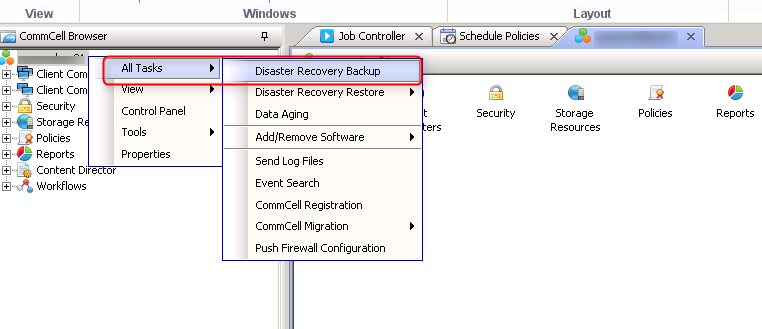
3. Open the SnapProtect Administrative console on the CommServe/SnapProtect Server. In the console right-click on the commserve, select All Tasks and take a backup of SnapProtect using Disaster Recovery backup.

snapProtect-upgrade step 1

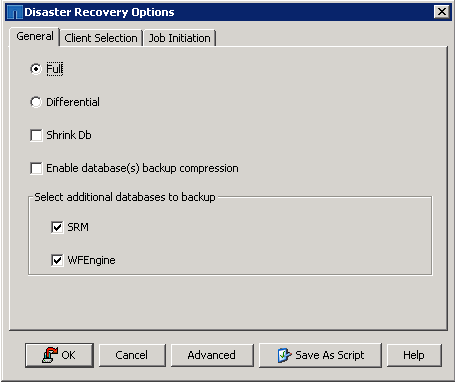
Select the option as a Full backup and click Ok

snapProtect-upgrade step 2

4. Find the SET_XXX folder, in this case in the SnapProtectDR folder and zip it.

snapProtect-upgrade step 3 Read More

post

HowTo: vROPS – Blue Medora Cisco UCS and NetApp Management Pack installs

Following on from installing vROPS a few month back I finally made the jump to install the Blue Medora management packs for both Cisco UCS and NetApp to get greater visibility into my virtual environment and the underlying physical infrastructure. I’m really looking forward to seeing what these management packs have to offer. While I’m not going to cover off the dashboards provided by the management packs in this post it is something I plan on revisiting once it’s been in use for a while and I’ve done a bit more playing around with it. The reason I’m posting this deployment process is that despite Blue Medora having decent installation guide it’s not always 100% clear, so I’ve done this to hopefully help guide a few others through the process a bit easier.

Cisco UCS Management Pack Deployment

Before you begin this deployment you can download trial versions from Blue Medora and if you want a permanent installation purchase some licenses from Blue Medora.

1: In vRealize Operations Manager go to the Administration -> Solutions

Blue Medora UCS Management Pack Install Step 1 Read More

post

Unable to upgrade VMware Tools – VMwareTools64.msi is not a valid package

A while back I upgrade my vCenter and vSphere environment to 5.5 Update 2. As part of this upgrade VMware Tools was upgraded on most servers. Except that is of vCenter itself. This wasn’t a major issue but other issues began to arise where alerts came for disk consolidation problems. On investigation of this most KB articles were pointing towards upgrading the VMware Tools and that should fix the problem. So that’s what I tried. When running the VMware Tools installation on the vCenter VM I got an error that the VMwareTools64.msi was not a valid installation package and to find the correct package to install. I tried a number of things to get this to work but it would just not run the VMwareTools64.msi. I also couldn’t update the VM through Update Manager either.

vmwaretools64-error

The first step was to get the correct VMware Tools version as a standalone ISO. Since I performed the upgrade VMware have released a new version of VMware Tools, now it’s version 10, and that’s the only one that can be downloaded from the support site. The version I’m looking for is 9.4.5 and I don’t want to install version 10 without doing prior deployment to the test environment. And this all led me to Vladan’s website article called Manual Download of VMware Tools from VMware Website. Thanks to this article I was quickly able to get the VMware Tools package that I needed.  You can go to http://packages.vmware.com/tools and select the VMware Tools version you need for download. The ISO was added to the ISO Datastore and mounted to the VM.

Following this I tried a number of different VMware KB articles but the one I finally found to work was KB1012693. This involved opening a command prompt, changing directory to the CD drive where VMware Tools was mounted and running the command:

setup64.exe /c

Once that completed I re-ran the VMTools installation and it completed successfully. Following the server reboot the VMTools are showing as up to date in vCenter.

post

Tropical mating calls of IT vendors

In recent times tech marketing has gone into overdrive. Everywhere you look there’s the next big thing that will converge, simplify and automate my data center infrastructure so I’ve more time to work out what to do on holidays in the Seychelles. I wish that’s where I was going on holidays next! If I was, maybe I’d get to see some of the odd but fascinating tropical bird mating rituals. Given the amount of pomp and circumstance that’s been going on around some vendors recent releases you’d be forgiven for confusing the two. Both the mating ritual and the vendors are seeking the attention of their desired partner and will go to great lengths to get it. You have to pull back the feathers to really see what’s going on behind the scenes to fully understand if its someone you want to get into bed with.

Read More

post

VMware & TSM- VixDiskLib: Error occurred when obtaining NFC ticket

I had the honour, and I use that sarcastically, of having some backups failing recently following a TSM upgrade. While the reason is not clear as to why a newer version of TSM failed my guess is that how TSM sends API or other calls has changed and that’s why the error came up. The new TSM version can make API calls based on a specific version of vSphere. As the environment was upgraded from vSphere 4 to 5 etc. the original license key edition was at the top of the license chain and this is what was being interrogated by the APIs so it failed to capture a valid backup.

What we were seeing was the the backup software connecting and taking the snapshot as per vCenter GUI but the transmission aborts with the following error;

08/12/2015 17:32:39.321 : vmvddksdk.cpp       (1168): VixDiskLib: Error occurred when obtaining NFC ticket for: [DATASTORE_NAME]  VM_NAME/VM_NAME.vmdk. Error 16064 at 3707.
 08/12/2015 17:32:39.321 : vmvddksdk.cpp       (1024): vddksdkPrintVixError(): VM name 'VM_NAME'.
 08/12/2015 17:32:39.321 : vmvddksdk.cpp       (1054): ANS9365E VMware vStorage API error for virtual machine 'VM_NAME'.
 TSM function name : VixDiskLib_Open
 TSM file          : vmvddksdk.cpp (1669)
 API return code   : 16064
 API error message : The host is not licensed for this feature

While it was not the exact issue I did find a VMware KB article which mentions removing the license from vCenter MOB (Managed Object Browser). The details however were not clear. Thankfully the community came to the rescue and I found the real solution in GSparks response from the Community thread. The overview was there but not the intimate detail which is why I’ve documented the process here.

Step 1: Read More